概要
Node.jsで画像にテキストを描画してサムネイルを自動生成する方法について解説していきます。
ブログを書いていると毎回アイキャッチ用のサムネイルを用意することになるのですが、「画像編集ツールを開く → 文字を置く → 書き出す → アップロードする」という一連の作業がとにかく面倒なんですよね(- -;
記事を量産しようとするほど、この地味な手作業がボトルネックになってきます。
そこで今回は背景画像の上に日本語テキストを焼き込んで、コマンド一発でサムネイル画像を吐き出すスクリプトをNode.jsで自作しました。
使うのは画像変換の定番sharpと、文字描画用のcanvasの2つだけです。
実装としてはcanvasで背景+テキストを合成し、最後にsharpでJPEGとして書き出す、という流れになります。
自動改行や複数行の中央寄せまで入れているので、タイトルが長くてもそれなりに見られるサムネが出来上がります。
この仕組みを一度作ってしまえば、毎回のサムネ作成作業を実質ゼロにできるのでかなりお勧めです。
それではやっていきましょう!
目次
サムネ自動生成に使うライブラリ
画像にテキストを描画する処理は、大きく分けて「文字を描く部分」と「画像を書き出す部分」の2つで構成します。
このブログでは前者にcanvas、後者にsharpを使っています。
- canvas
- ブラウザのCanvas APIと同じ感覚でNode.js上に図形やテキストを描画できるライブラリ。日本語フォントの登録(registerFont)もできます
- sharp
- 高速な画像変換ライブラリ。今回はcanvasで作った画像をJPEGとして圧縮・書き出すために使います
どちらもサーバーサイドの画像処理では定番なので、覚えておいて損はないですね。
実装手順
1.npmでライブラリをインストール
今回の実装で使用するライブラリをnpmでインストールします。
sharpとcanvasを使用してます。
コマンド
1
| npm install sharp @napi-rs/canvas
|
2.使用したいフォントを取得
画像に配置する文字のフォントをダウンロードします。
自分の好きなフォントでOKです!
自分の場合は「SourceHanSansJP-Bold.otf」を使用しました。
ファイルの形式はttfやotfなら無問題です(^^b
3.JavaScriptを書く
JavaScriptで下記のようにソースコードを書きます。
image_text.js
1
2
3
4
5
6
7
8
9
10
11
12
13
14
15
16
17
18
19
20
21
22
23
24
25
26
27
28
29
30
31
32
33
34
35
36
37
38
39
40
41
42
43
44
45
46
47
48
49
50
51
52
53
54
55
56
57
58
59
60
61
62
63
64
65
66
67
68
69
70
71
72
73
74
75
76
77
78
79
80
81
82
83
84
85
86
87
88
89
90
91
92
93
94
95
96
97
98
99
100
101
102
103
104
105
106
107
108
109
110
111
112
113
114
115
116
117
118
119
120
121
122
123
124
125
126
127
128
129
130
131
132
133
134
135
136
137
138
139
140
141
142
143
144
145
| import sharp from "sharp";
import { createCanvas, registerFont, loadImage } from "canvas";
import path from "path";
import { fileURLToPath } from "url";
const bgPath = "background.jpg";
const fontPath = "SourceHanSansJP-Bold.otf";
const outPath = "C:\\cover";
const fontSize = 128;
function isHalfWidth(ch) {
return /^[\x00-\x7F]$/.test(ch);
}
function drawTextLine(ctx, text, xCenter, y, fontSize) {
let x = xCenter - ctx.measureText(text).width / 2;
for (const ch of text) {
const w = ctx.measureText(ch).width;
ctx.fillText(ch, x + w / 2, y);
x += w;
}
}
function splitTextWithNewline(ctx, text, maxWidth) {
const rawLines = text.split("\\n");
const result = [];
rawLines.forEach(segment => {
const wrappedLines = wrapText(ctx, segment, maxWidth);
result.push(...wrappedLines);
});
return result;
}
function wrapText(ctx, text, maxWidth) {
const lines = [];
let line = "";
for (const char of text) {
const testLine = line + char;
const { width: testWidth } = ctx.measureText(testLine);
if (testWidth > maxWidth && line !== "") {
lines.push(line);
line = char;
} else {
line = testLine;
}
}
if (line) lines.push(line);
return lines;
}
async function drawTextOnImage(backgroundFile, text, ouputPath,filename, fontFile) {
const __filename = fileURLToPath(import.meta.url);
const __dirname = path.dirname(__filename);
const backgroundPath = path.join(__dirname, backgroundFile);
const image = sharp(backgroundPath);
const { width, height } = await image.metadata();
const fontPath = path.join(__dirname, fontFile);
registerFont(fontPath, { family: "SHSJP" });
const canvas = createCanvas(width, height);
const ctx = canvas.getContext("2d");
const bgImage = await loadImage(backgroundPath);
ctx.drawImage(bgImage, 0, 0, width, height);
ctx.font = `${fontSize}px 'SHSJP'`;
ctx.fillStyle = "black";
ctx.textAlign = "center";
ctx.textBaseline = "middle";
const maxTextWidth = width * 0.9;
const lines = splitTextWithNewline(ctx, text, maxTextWidth);
const lineHeight = fontSize * 1.2;
const totalHeight = lines.length * lineHeight;
const startY = height / 2 - totalHeight / 2 + lineHeight / 2;
lines.forEach((line, i) => {
const y = startY + i * lineHeight;
drawTextLine(ctx, line, width / 2, y, fontSize);
});
const outputImagePath = path.join(ouputPath, filename + ".jpg");
const outBuffer = canvas.toBuffer("image/png");
await sharp(outBuffer)
.jpeg({ quality: 90 })
.toFile(outputImagePath);
console.log("出力完了:", outputImagePath);
}
const [, , filename, text] = process.argv;
if (!filename || !text) {
console.log("使い方: node image_text.js <出力ファイル名> <テキスト>");
process.exit(1);
}
drawTextOnImage(bgPath, text, outPath,filename, fontPath);
|
少しだけ処理のポイントを補足しておきますね。
- 1文字ずつ描画している(drawTextLine)
fillTextで行をまとめて描くと文字間が詰まりがちなので、1文字ずつ幅を測って並べることで字間を安定させています
- 自動改行と明示的な改行の両対応(wrapText / splitTextWithNewline)
- 画像幅の90%を超えたら自動で折り返しつつ、テキスト中に
\nという文字列があればそこでも改行します
- 複数行を縦中央に寄せる
- 行数×行高から全体の高さを求め、画像の中央に来るよう開始Y座標を計算しています
- 最後にsharpでJPEG化
- canvasのバッファをsharpに渡して
quality: 90でJPEG出力。背景画像の上に文字が乗った状態で書き出されます
また定数定義部分については、個人の環境によってご変更ください
- 変更箇所
- const bgPath = “[背景に使用する画像]”;
- const fontPath = “[フォント(otfなど)]”;
- const outPath = “[完成画像の出力フォルダ]”;
4.フォルダに配置
任意のフォルダに「手順.2のフォント」と「手順.3のプログラム」を配置します。
自分の場合は下記の画像のようなフォルダ構成にしています。
フォント・プログラム・背景画像を同じフォルダに配置した構成
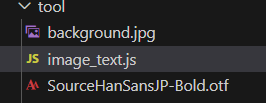
この記事のプログラムをそのまま使用するなら、
同じフォルダにすべてのファイルを配置しましょう!
5.プログラムを実行
プログラムを実行して画像を生成してみます。
コマンド
1
| node C:/tool/image_text.js "test_test" "テストですよ\nテスト123テストhogeテスト123テスト"
|
実行時に自分の場合は「couldn't load font」エラーが発生しました。
うまくフォントが読み込めて無いようです。。。
本当は修正したいのですが、今回の場合は問題なく画像出力できたのでここでは無視してます。
6.確認
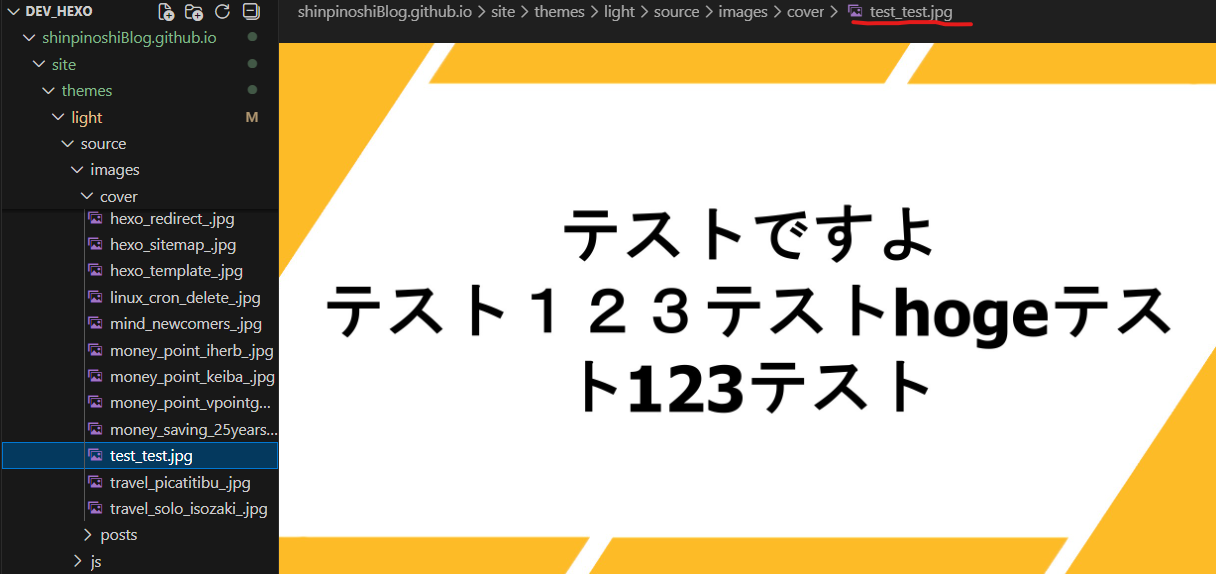
出力された画像を確認します。
無事出力されてそうですね!
背景画像に日本語テキストを描画したサムネイルの出力結果
canvasが動作しない場合の対処
環境によってはcanvasのインストール直後にうまく動かないことがあります。
そういうときはcanvasを入れ直すと直るケースが多いので、まずは再インストールを試してみてください。
コマンド
1
2
| npm uninstall @napi-rs/canvas
npm install canvas
|
canvasはネイティブモジュールに依存しているため、OSやNode.jsのバージョン差で読み込みに失敗することがあります。
再インストールしても直らない場合は、Node.jsのバージョンを揃えるか、ビルドツールが入っているかを確認してみると良いですね。
締め
こんな感じでサムネ生成ツールを作ってみました。
結構サムネイルを作る効率が上がったのではないでしょうか?
10分程度の作業時間が1分にできるんですから、塵積で大幅な時間短縮になりますよね!
最初はpythonで実装しようとしたのですが、自分のブログでの使用言語がjsだったので、こっちで実装してみました。
結構苦労はしましたが、無事実装できてよかったです(^^
こんな感じの便利ツールは実際の業務とかでも作ったりしているので、できる範囲でどんどん記事にしてきますね!
今回は以上となります。
ツール作りは楽しいので、是非皆さんもやりましょう!
お疲れさまでした。